Understanding the Insta360 Camera Features
The Insta360 line of cameras revolutionizes photography and videography by transforming the way we perceive our surroundings. With a blend of cutting-edge technology and user-friendly design, these 360-degree cameras cater to enthusiasts and professionals alike. Let's dive into the remarkable features that set Insta360 cameras apart.
Key Specifications of the Insta360
Insta360 boasts specifications that enhance the user experience across various scenarios. The latest models typically support up to 8K resolution for video, capturing stunning details that bring your memories to life. These cameras are often equipped with advanced stabilization technology, which delivers smooth footage even in dynamic conditions. Battery life varies by model, but many provide several hours of continuous shooting, making them ideal for travel and extended events. Their waterproof capabilities ensure durability in outdoor settings, adding to their versatility.
Lens and Image Quality
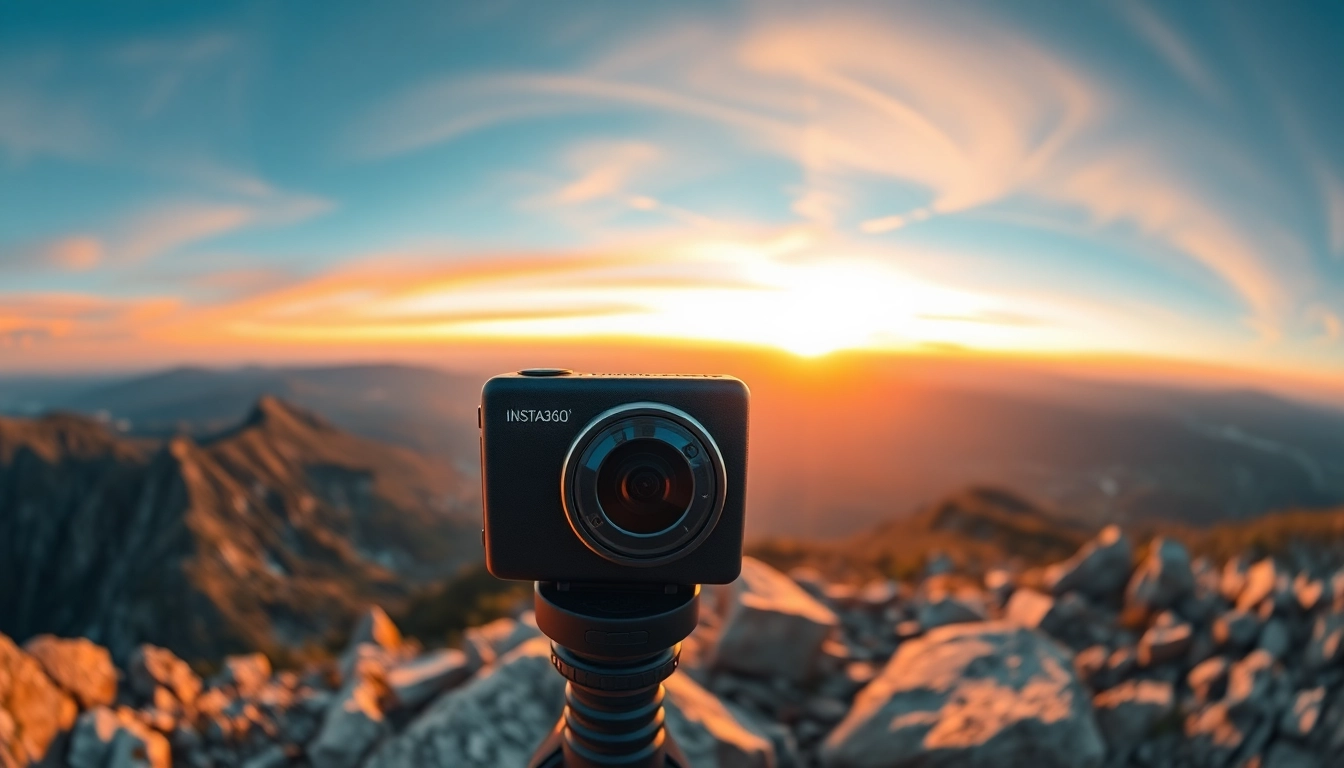
The lens design of Insta360 cameras deserves special attention. With dual-lens systems on many models, users can achieve truly immersive 360-degree imagery. The quality of the lenses plays a crucial role in image capture, with options featuring advanced HDR capabilities and low-light performance enhancements. This results in vibrant colors and sharp contrasts, even in challenging lighting environments. Regular updates to lens coatings and materials ensure that users benefit from the latest optical innovations.
Connectivity and Compatibility with Devices
Connectivity options on Insta360 cameras support a wide range of devices, enabling seamless integration with smartphones, tablets, and computers. Most models leverage wireless connections, allowing users to upload content directly to social media or edit via dedicated apps. Insta360's app is particularly robust, featuring user-friendly interfaces and powerful editing tools that streamline the post-production process. Furthermore, compatibility with various operating systems expands the opportunities for content creation.
Setting Up Your Insta360 Camera
Unboxing and Initial Setup
Unboxing your Insta360 camera is a thrilling moment. Start by carefully opening the packaging and removing the camera and accessories. Most packages include a quick-start guide that outlines the initial setup process. Generally, you'll need to charge the camera fully before use, and familiarizing yourself with the camera's buttons and functions is essential. This preparatory step will enhance your shooting experience by ensuring you're ready to capture moments without delay.
Firmware Updates and App Download
Firmware updates are critical for optimizing camera performance and introducing new features. Before shooting, download the Insta360 app available for both Android and iOS devices to manage updates seamlessly. The app typically prompts users when new firmware is available, allowing for quick installations that enhance functionality. Staying updated ensures your camera operates at peak performance and provides access to the latest editing tools.
Connecting to Your Smartphone or Device
Connecting your Insta360 camera to a smartphone is usually straightforward. Use the Wi-Fi or Bluetooth settings in the camera and your mobile device to establish a link. Once connected, open the Insta360 app, which will recognize the camera and allow for remote shooting settings, live previews, and direct content uploads. Remember that a stable connection is crucial for efficient transfer speeds and functionality.
Essential Shooting Techniques with Insta360
Best Practices for Indoor and Outdoor Shots
Understanding how to capture high-quality shots using Insta360 involves implementing best practices tailored to both indoor and outdoor environments. For indoor shots, consider existing light sources and use them to your advantage, avoiding harsh overhead lights that can create unflattering shadows. Outdoor photography often benefits from the golden hour—around sunrise or sunset—where lighting brings warmth and depth to images. Positioning the camera appropriately for each scenario maximizes the 360-degree capture potential, ensuring every angle is included.
Capturing High-Quality Video Footage
High-quality video footage requires an understanding of the camera's settings and the scene. Use the stabilization features to minimize shakiness, especially during motion shots. Experiment with different frame rates based on your subject's movement and intended final output. Using slow-motion settings can create dramatic effects for fast-paced scenes, while steady, moderate frame rates work well for most general recording needs. Always check your settings before shooting to ensure optimal results.
Using Different Modes and Settings
Insta360 cameras come equipped with various modes and settings designed to enhance your creative options. Consider using the time-lapse feature for capturing the passage of time, or the bullet time mode to create striking slow-motion moments. Adjusting for different environments—like selecting night mode for low light—can enhance the footage quality. Familiarize yourself with these settings to maximize the potential of your camera and expand your creative horizons.
Editing and Enhancing Insta360 Content
Using the Insta360 App for Editing
The Insta360 app serves as a powerful editing suite that accommodates users of all skill levels. Within the app, you can trim, stitch, and assemble clips effortlessly. You’ll find intuitive features such as automatic edits and templates that simplify the creation process, allowing you to focus more on storytelling and less on technicalities. The app also allows for quick fixes like color correction and adding music, enhancing your final projects significantly.
Adding Effects and Filters
Adding effects and filters can elevate the visual appeal of your Insta360 footage. The app provides a host of creative options, including various filters that can change the mood and aesthetic of your videos. Effects such as stabilizers and transitions offer professional polish, while themed templates can make editing personal content into shareable media simple and quick. Explore different combinations to find the best fit for your project and audience.
Exporting Your Final Creations
Once you’ve edited your project, exporting is the final step to sharing your work. The Insta360 app allows various export settings that cater to different platforms. Whether you aim for high resolution to share on websites or optimized formats for social media platforms, having these options ensures your footage looks its best. Confirm the export settings align with the requirements of your intended use to avoid quality loss.
Troubleshooting Common Insta360 Issues
Resolving Connectivity Problems
Connectivity issues can be frustrating, but there are simple steps to troubleshoot. Begin by ensuring your camera and device are within range and that Bluetooth or Wi-Fi is enabled on both devices. Restarting both the camera and the device can also refresh connections. If problems persist, uninstalling and reinstalling the Insta360 app may resolve underlying software issues, ensuring a seamless connection.
Fixing Image Quality Issues
Image quality issues may arise due to several factors, such as improper camera settings or post-editing adjustments. Start by reviewing the camera settings to ensure optimal conditions for shooting. Check for lens obstructions that may obscure the view; clean the lens if necessary. After capturing, if images still lack quality, consider using the app’s editing features to enhance colors or sharpness before final export.
General Maintenance Tips for Longevity
Maintaining your Insta360 camera will prolong its lifespan and preserve performance quality. Regularly clean the lens to avoid dust and grime affecting image clarity. Store the camera in a protective case to prevent physical damage. Ensure the battery is charged regularly and follow manufacturer guidelines for firmware updates. Periodic inspections of all moving parts and connections can also prevent unexpected failures.
FAQs About Insta360
What kind of content can I create with an Insta360 camera?
You can create a variety of content including immersive 360-degree videos, time-lapse photography, VR content, and high-quality panoramic photos suitable for social media and professional projects.
Can I use Insta360 for live streaming?
Yes, many Insta360 models support live streaming. You can connect them directly to social media platforms through the app for real-time broadcasting of events.
What is the battery life of Insta360 cameras?
Battery life varies by model but typically ranges from 60 to 120 minutes of continuous shooting. It's advisable to carry spare batteries for extended outings.
Are Insta360 cameras waterproof?
Most Insta360 models are designed with some level of water resistance. Others come with specific waterproof housing options to enhance protection during underwater use.
How do I edit my Insta360 footage?
You can edit your Insta360 footage using the Insta360 app, which offers a variety of tools for trimming, color correction, adding filters, and even stabilizing videos.